Deploy CDM through Group Policy using the EXE file
To deploy CDM through Group Policy, you’ll need to create a Group Policy Object (GPO) and then configure it for distribution. This method only applies to domain-joined environments. Before you begin, you’ll need to do the following:
-
Download the CloudDriveMapper.exe file from the Downloads page in Iris to a central storage location such as a file server. Depending on your environment, the Downloads page includes an executable file for both x64 and ARM64 devices.
-
Download the PowerShell script templates folder from the Downloads page in Iris. We have provided you with this template so you can use it to copy the required scripts to the Startup folder easily. Once downloaded, you’ll notice that the following file is available in the C:\Users\UserName\Downloads folder: Powershell_script_template.zip.
-
Press Windows + S on your keyboard to open the search box.
-
Type Group Policy Management in the search box, then press Enter to launch it.

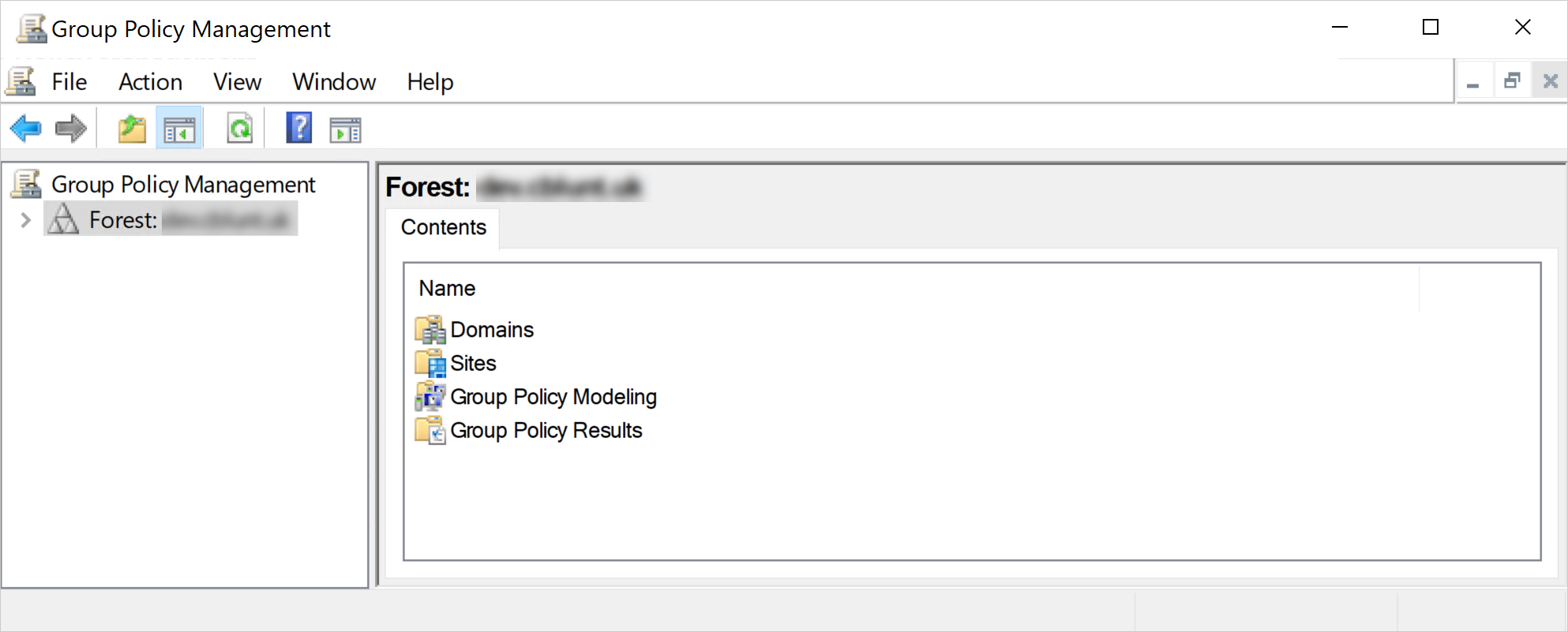
-
Double-click the forest to expand it, followed by Domains, and then the desired domain.
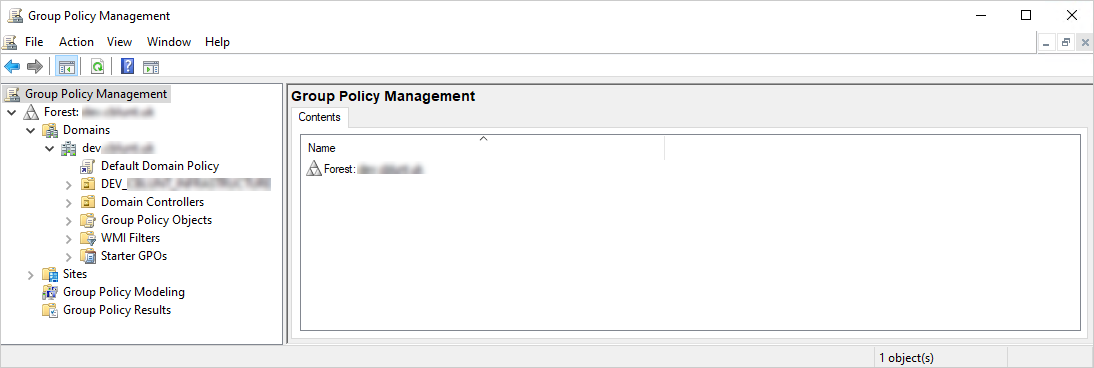
-
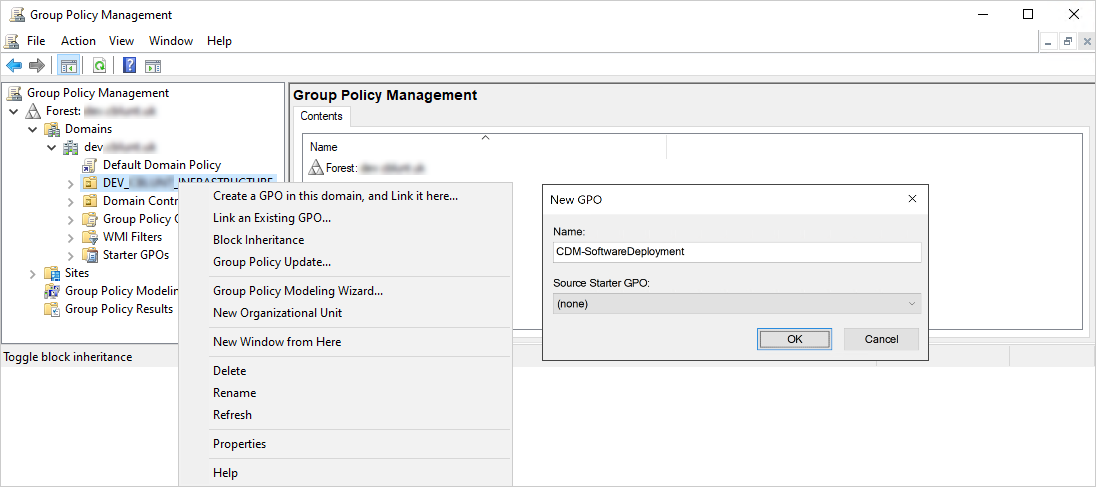
Right-click the organizational unit for which you want to create the GPO, select Create a GPO in this domain, and Link it here… from the shortcut menu. The New GPO dialog box appears.
-
Enter a name for the new GPO in the Name box and select OK. The new GPO will appear in the navigation pane on the left under the organizational unit.
-
Right-click the new GPO and select Edit… from the shortcut menu to configure it for distribution. The Group Policy Management Editor console appears.
-
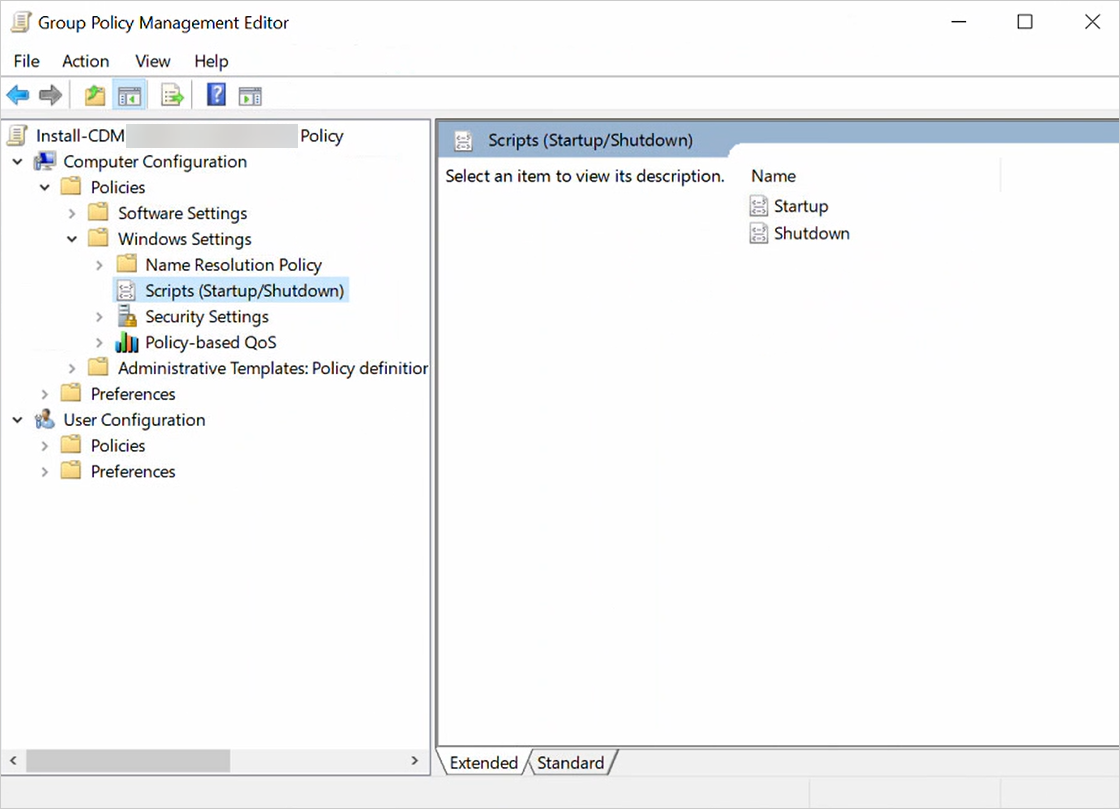
Double-click the Policies branch under Computer Configuration to expand it.
-
Double-click the Windows Settings branch under Policies to expand it, then select Scripts (Startup/Shutdown).
-
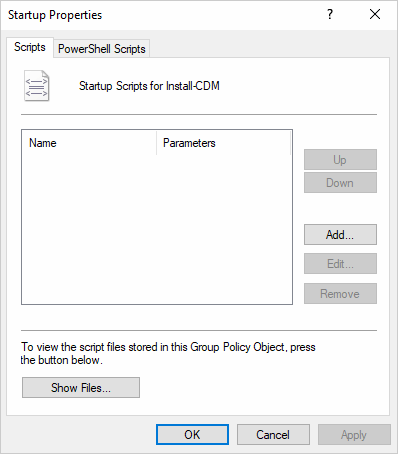
In the right-hand pane of the Group Policy Management Editor console, double-click Startup. The Startup Properties dialog box appears.
-
Select Show Files…. File Explorer opens and displays the Machine Startup scripts folder for the GPO. Keep File Explorer open.
-
Copy your license key from the CDM Dashboard in Iris.
-
Extract the contents of the Powershell_script_template.zip folder.
-
Open the Deployment scripts folder, followed by the Install-CloudDriveMapper PowerShell script in a Text Editor such as Notepad or Notepad++.
-
Replace the INSERT_YOUR_LICENSE_KEY string with your license key within the quotation marks, save the PowerShell script, and exit the Text Editor.
-
Copy the following files from the Deployment scripts folder within the Powershell_script_template folder, and paste them into the Machine\Scripts\Startup folder:
-
CDMInstallLauncher.bat
-
Install-CloudDriveMapper.ps1
-
Copy the CloudDriveMapper.exe file from where you saved it and paste it into the Machine\Scripts\Startup folder.
-
Close File Explorer and return to the Startup Properties dialog box.
-
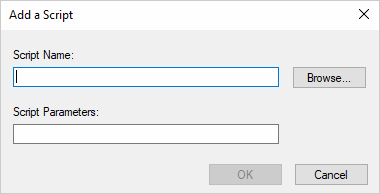
Select Add…. The Add a Script dialog box appears.
-
Select Browse…. File Explorer opens to the Machine\Scripts\Startup folder.
-
Select CDMInstallLauncher.bat, then Open to select the batch file. You’ll return to the Add a Script dialog box.
-
Leave the Script Parameters field blank and select OK to return to the Startup Properties dialog box.
-
Select OK to close the Startup Properties dialog box.
-
Close the Group Policy Management Editor console and complete the process of deploying CDM through Group Policy using the EXE file.